The Beginner's Guide to Nmap: Network Scanning Fundamentals

Introduction: What is Nmap?
Nmap (Network Mapper) is an open-source network scanning and reconnaissance tool that has become the de facto standard for network discovery and security auditing. Created by Gordon Lyon (also known as Fyodor), Nmap allows you to:
Discover hosts and services on a computer network
Create a map of the network structure
Identify open ports and detect security vulnerabilities
Determine what operating systems and services are running
This guide will take you from the absolute basics to more advanced techniques, helping you understand not just how to use Nmap, but why each technique works and when to use it.
Getting Started with Nmap
Installation
Before we dive into using Nmap, you'll need to install it:
On Windows:
Download the installer from nmap.org/download.html
Run the installer and follow the prompts
On macOS:
Use Homebrew:
brew install nmapOr download from nmap.org/download.html
On Linux:
Ubuntu/Debian:
sudo apt install nmapFedora/RHEL:
sudo dnf install nmapArch Linux:
sudo pacman -S nmap
Verifying Installation
To confirm Nmap is installed correctly, open your terminal or command prompt and type:
nmap -vYou should see version information and basic usage details.
Basic Nmap Concepts
1. Ports and Services
Every network service (like a web server, email server, etc.) runs on a specific port number. For example:
Port 80: HTTP (web)
Port 443: HTTPS (secure web)
Port 22: SSH (secure shell)
Port 25: SMTP (email)
Nmap helps you discover which ports are open on a target system, revealing potential services to interact with (or secure).
2. Scan Types
Nmap offers several scanning techniques, each with different purposes:
TCP SYN scan (
-sS): The default and most popular scan. It's relatively quick and unobtrusive.TCP connect scan (
-sT): A more thorough but slower scan that completes the TCP handshake.UDP scan (
-sU): Scans for UDP ports, which are often overlooked in security audits.Ping scan (
-sn): Just determines if hosts are online, without port scanning.
3. Timing Templates
Nmap allows you to control scan speed with timing templates:
-T0(Paranoid): Very slow, used for IDS evasion-T1(Sneaky): Slow, used for IDS evasion-T2(Polite): Slows down to consume less bandwidth-T3(Normal): Default speed-T4(Aggressive): Faster, assumes you're on a decent network-T5(Insane): Very fast, but might miss details
Your First Nmap Scans
Let's start with the most basic scans before moving to more advanced techniques.
1. Simple Host Discovery
To check if a host is online:
nmap -sn 192.168.1.1To scan an entire subnet:
nmap -sn 192.168.1.0/24This only tells you which hosts are online, without scanning ports.
2. Basic Port Scan
To scan the most common ports on a host:
nmap 192.168.1.1By default, Nmap scans the top 1000 TCP ports.
3. Scan All Ports
To scan all 65535 TCP ports:
nmap -p- 192.168.1.1This is more thorough but takes longer.
4. Scan Specific Ports
To scan only certain ports:
nmap -p 22,80,443 192.168.1.1Or a range of ports:
nmap -p 1-100 192.168.1.15. Service and Version Detection
To identify what services and versions are running:
nmap -sV 192.168.1.1This helps identify outdated or vulnerable software versions.
Reading Nmap Results
When Nmap completes a scan, it displays results that look something like this:
Starting Nmap 7.92 ( https://nmap.org ) at 2023-04-10 20:30 EDT
Nmap scan report for 192.168.1.1
Host is up (0.023s latency).
Not shown: 997 closed ports
PORT   STATE SERVICE VERSION
22/tcp open  ssh     OpenSSH 8.2p1 (protocol 2.0)
80/tcp open  http    Apache httpd 2.4.41
443/tcp open  https   Apache httpd 2.4.41 (SSL/TLS)
Let's break this down:
PORT: The port number and protocol (TCP/UDP)
STATE: Whether the port is open, closed, or filtered (blocked by firewall)
SERVICE: What service Nmap thinks is running on the port
VERSION: The detected software version (when using -sV)
Intermediate Nmap Techniques
Now that you understand the basics, let's explore some more powerful features.
1. Operating System Detection
To guess the target's operating system:
nmap -O 192.168.1.1Note: This requires root/administrator privileges.
2. Combining Multiple Scan Types
A commonly used combination for thorough scanning:
nmap -sS -sV -O 192.168.1.1This performs a SYN scan with service version detection and OS detection.
3. Using NSE Scripts
Nmap Script Engine (NSE) extends functionality with pre-written scripts:
nmap --script default 192.168.1.1This runs the default script category. To use a specific script:
nmap --script http-title 192.168.1.1This retrieves the titles of any web pages found.
4. Saving Scan Results
Save results for later analysis in different formats:
nmap -sV 192.168.1.1 -oN results.txtWhere output formats include:
-oN: Normal text output-oX: XML output (good for automated processing)-oG: Grepable output (easy to parse with tools)-oA: All formats at once (creates multiple files)
Advanced Nmap Techniques
Now, let's explore the advanced techniques from your examples and explain them for beginners.
1. Full Reconnaissance in One Line
nmap -sC -sV -A -T4 example.comThis command combines several powerful features:
-sC: Runs default scripts to gather more information-sV: Probes open ports to determine service/version info-A: Enables OS detection, version detection, script scanning, and traceroute-T4: Sets timing to aggressive (faster scanning)
When to use: When you need comprehensive information about a system and want to scan quickly.
2. Targeting Web Ports with Enumeration
nmap -p 80,443 --script http-enum example.comThis focuses on web ports and:
-p 80,443: Only scans the standard HTTP and HTTPS ports--script http-enum: Uses the http-enum script to find common web applications and files
When to use: When specifically auditing web services to find potential entry points.
3. Finding Hidden Subdomains
nmap --script dns-brute example.comThis script attempts to discover subdomains by:
Using a dictionary attack against the DNS server
Finding additional domain names that might not be publicly advertised
When to use: When expanding your testing scope during security assessments.
4. Stealth Scanning (Firewall Bypass)
nmap -D RND:10 -T2 -Pn example.comThis is a more stealthy approach:
-D RND:10: Uses 10 random IP addresses as decoys to hide your real IP-T2: Slows down the scan to be less detectable-Pn: Skips the ping scan (assumes all hosts are online)
When to use: In controlled environments where you're testing security monitoring capabilities.
5. Vulnerability Scanning with NSE
nmap --script http-sql-injection -p 80 example.comThis goes beyond discovery into actual vulnerability testing:
--script http-sql-injection: Runs a script that checks for SQL injection vulnerabilities-p 80: Focuses only on the HTTP port
When to use: When performing initial vulnerability assessments.
Essential Nmap Script Categories
Nmap comes with hundreds of scripts organized into categories:
auth: Authentication related scripts
broadcast: Discover hosts by broadcasting
brute: Brute force attacks
default: Safe scripts run by default with -sC
discovery: Discover more information about the network
dos: Detect or perform denial of service attacks (use with caution!)
exploit: Attempts to exploit vulnerabilities
fuzzer: Fuzzing scripts (sending random data)
intrusive: Scripts that might crash services or be detected as attacks
malware: Check for backdoors/malware
safe: Scripts unlikely to crash services or trigger alerts
version: Better service detection
vuln: Check for specific vulnerabilities
To see all available scripts:
nmap --script-help allTo get help on a specific script:
nmap --script-help http-methodsUseful Nmap Scripts for Web Scanning
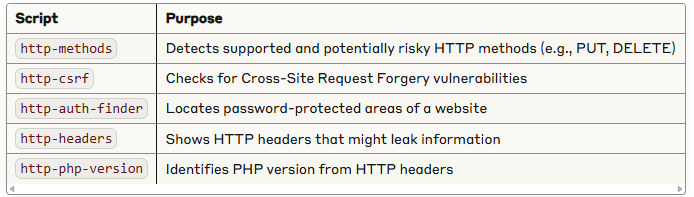
As mentioned in your list, these scripts are particularly useful for web security testing:
Nmap in Security Workflows
For Network Administrators:
Perform regular scans to inventory your network
Document open services and expected ports
Configure alerts for unexpected changes
Use
-oXoutput for integration with other tools
For Security Professionals:
Start with host discovery (
-sn)Follow with port scans to identify services (
-sS -sV)Run targeted scripts for deeper analysis
Document and report findings
Develop remediation plans
Pro Tips for Nmap Users
Keep Nmap Updated:
nmap --script-updatedbupdates the script databaseSave Results in All Formats: Use
-oA scan_namefor comprehensive outputCombine with Other Tools: Use Nmap results to guide focused testing with specialized tools
Use Nmap on Legitimate Targets Only: Always have permission before scanning
Mind the Noise: More aggressive scans create more network traffic and are more likely to be detected
Control Bandwidth Usage: Use
--max-rateto limit packets per secondExclude Hosts: Use
--excludeto avoid scanning certain hosts
Ethical Considerations
Always remember:
Only scan networks you own or have explicit permission to scan
Some Nmap scans can disrupt services or trigger security alerts
In many jurisdictions, unauthorized scanning may be illegal
Use the knowledge responsibly to improve security, not compromise it
Conclusion
Nmap is an incredibly powerful tool with a wide range of capabilities. This guide has taken you from basic scanning to more advanced techniques, but there's still much more to explore. As you become more comfortable with the tool, experiment with different options and scripts to discover its full potential.
Remember that Nmap is just one tool in your security toolkit. For comprehensive security assessments, combine it with other specialized tools and methodologies.
Happy scanning, and always scan responsibly!